Features / Website blocker
Feature
Block unsafe sites on a managed device — use alongside OS controls.
Why parents use it: stay informed about blocking unsafe websites — authorized parental monitoring, not secret adult tracking. See plans · Free demo.
Free Demo — no credit card required · Available on Android
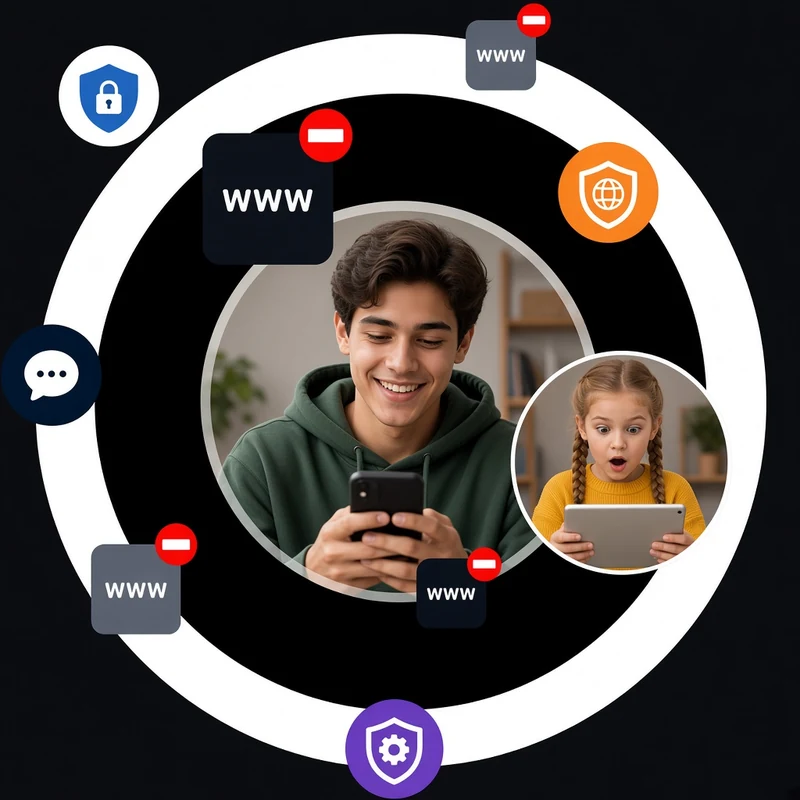
It’s easy to block them from seeing content that could harm their development.

If you don’t want them visiting a site, just tell Sidearo. It’s that simple.
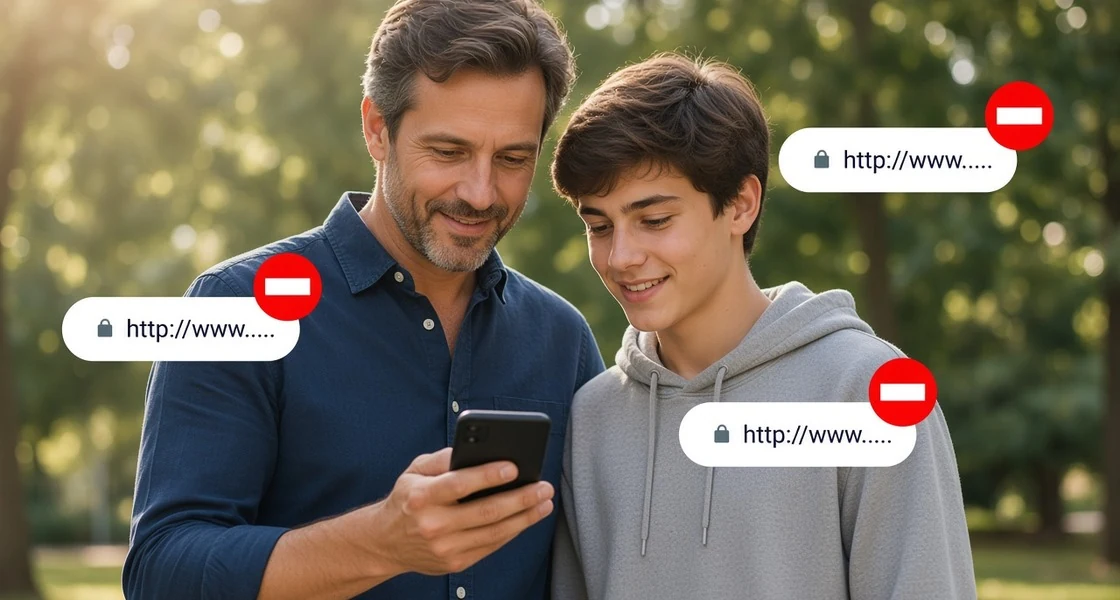
Wondering which sites they’re visiting the most? Sidearo shows you so you can block them.

Three clear steps — same path as the rest of the parental toolkit.
Install on a child’s phone you manage. Follow the setup guide.
Open the dashboard to monitor blocking unsafe websites where supported.
Open the free demo, or go straight to pricing — same toolkit on every plan.
Quick answers about this Sidearo feature.
When you have a website blocker in your arsenal, you won’t just be able to block websites on phones. You’ll also have a powerful app to help you understand their browsing habits and interests, and help you make informed decisions about their screen time. Here’s what you can do with the right kind of website blocking app: block risky sites, limit screen time, and review browsing habits on a managed child’s phone. block risky sites, limit screen time, and review browsing habits on a managed child’s phone.
Are your kids using their phone for activities that you don’t approve of? Are they visiting websites that really should be blocked? Before you download an app that’ll show you how to block websites on phone, look for these warning signs. They’re great indicators that your child could be hiding something and that you need to take action.
It’s straightforward to install a website blocker on a managed child’s phone and start parental monitoring: open Sidearo, choose Website Blocker, add rules, then confirm from the Control Panel.
You want to know how to block sites on phone, on Android. But if you’re like most people in search of an app that can do just that, you also want to take the concept of monitoring to the next level. That’s where an app like Sidearo comes in handy.
